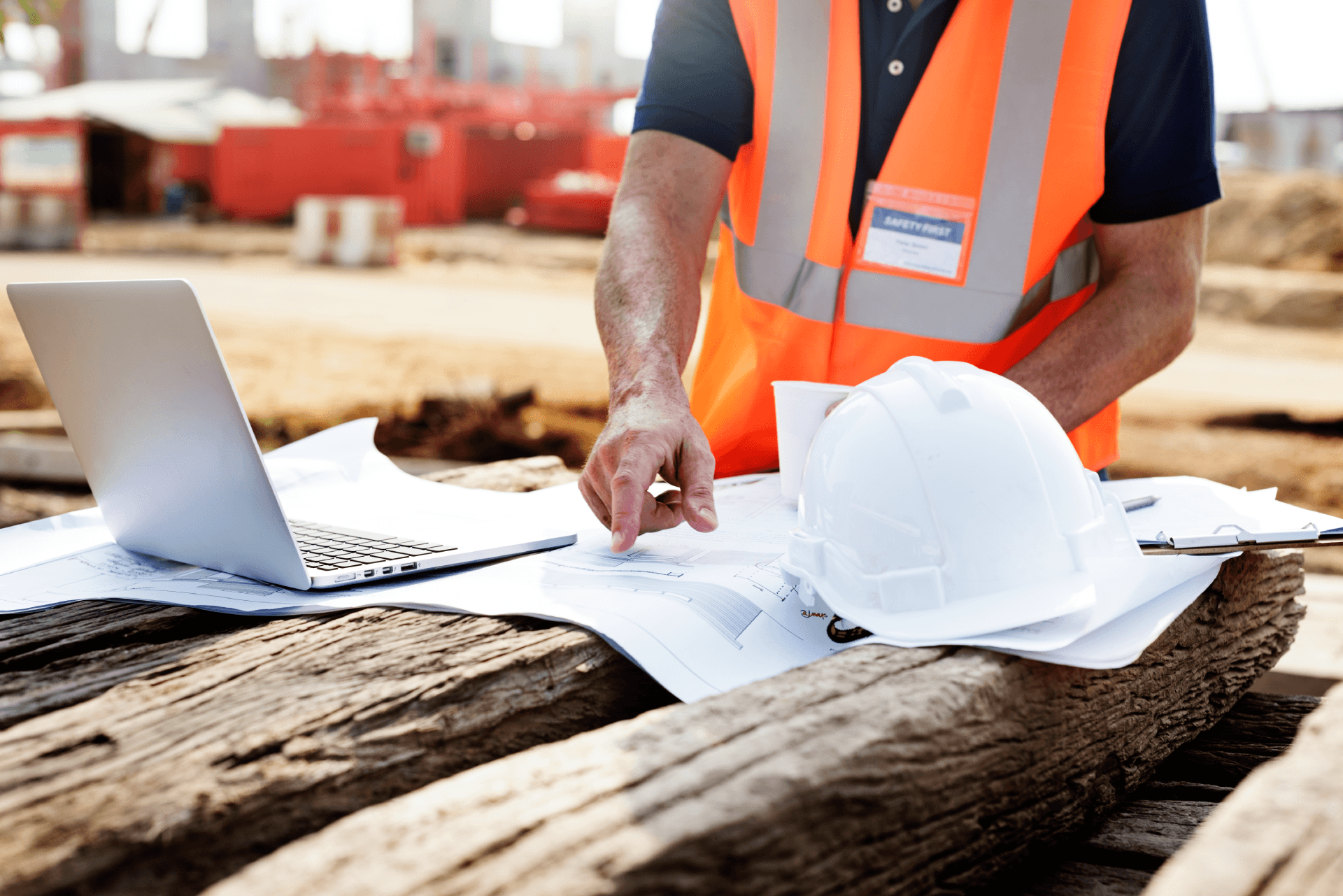
Construction sites present WiFi challenges that offices don't face: outdoor environments, metal structures, heavy equipment interference, temporary infrastructure, and crews moving constantly. For construction companies in Wisconsin and Northern Illinois, more than an inconvenience, poor WiFi is a business problem. It delays projects, disrupts communication, risks safety incidents, and costs money.
This guide shows you 10 strategies to improve WiFi connectivity on remote construction sites, from quick fixes to professional managed solutions.
7 Reasons WiFi Fails on Construction Sites
Construction sites aren't offices. Understanding why WiFi fails on job sites is the first step to fixing it. These are some of the unique challenges of construction site wifi.
1. Insufficient WiFi Coverage
A single access point can't cover an entire construction site. If your job site spans several acres, one WiFi router in the trailer won't reach the far side of the property. Crews working away from the main access point get weak or no signal. They either can't connect or have usable signal only sporadically.
Solution: Multiple access points, site survey, or range-extending solutions (covered below).
2. Heavy Equipment Interference
Generators, large power tools, welders, and heavy machinery create electromagnetic interference that disrupts WiFi signals. Cranes with metal structures reflect and absorb signals. This can cause the WiFi signal to drop when equipment is running. Users experience connectivity loss during peak work hours.
Solution: Frequency selection, shielding, or relocating access points away from interference sources.
3. Inadequate Bandwidth
Construction sites often rely on limited internet connectivity (single provider, slow ISP). When multiple crews try to work simultaneously, available bandwidth is exhausted. Then, speeds slow to crawl, multiple simultaneous connections fail, apps timeout, and video conferencing becomes unusable.
Solution: Dual ISP setup (primary + backup), higher-tier service from provider, or mobile hotspot backup.
4. Poor Access Point Placement
Routers placed randomly or in inconvenient locations don't optimize coverage. An access point in a locked equipment shed serves nobody. This causes dead zones where crews can't connect and signal strength far weaker than capacity of equipment.
Solution: Site survey to determine optimal placement. Higher mounting positions (antenna poles) improve coverage dramatically.
5. Weather and Environmental Factors
Rain, snow, fog, and temperature swings affect WiFi signal propagation. Dusty conditions can affect equipment cooling causing overheating. Moist conditions corrode connections, all when communications are most critical.
Solution: Weather-rated equipment, protective enclosures, regular maintenance.
6. Device Connection Issues
Construction crews use various devices (phones, tablets, laptops) with different WiFi capabilities, but not all devices connect reliably. Older devices may not support modern WiFi standards (WiFi 6, 5GHz bands), and mixing old and new devices creates performance problems.
Solution: Device recommendations, driver updates, WiFi standard optimization.
7. No Redundancy or Backup
When the single WiFi setup fails, and there's no backup, crews lose connectivity entirely, causing a complete communication breakdown. Then come project delays and even safety risks if crews can't radio for help.
Solution: Backup connectivity (mobile hotspots, second ISP, mesh network redundancy).
10 Strategies to Improve WiFi Connectivity on Construction Sites
1. Conduct a Wireless Site Survey
Before deploying equipment, assess the site conditions.
What to survey:
- Expected coverage area (how big is the job site?)
- Interference sources (generators, large equipment, metal structures)
- Building materials and obstructions
- Distance from internet source (ISP connection point)
- Optimal locations for access points
Walk the site with a WiFi analyzer app (WiFi Analyzer, NetSpot), and document signal strength in key work areas. Identify interference hotspots to determine number of access points needed. Site surveys often reveal that adding a second access point is more cost-effective than trying to extend a single underpowered router.
2. Deploy Multiple Access Points in Mesh Configuration
Single access points don't work on large construction sites.
Mesh WiFi advantages:
- Seamless handoff as workers move between zones
- Coverage extends throughout entire job site
- Backhaul connections (access points talk to each other) reduce cabling
- Easy to expand as project grows
What to choose:
- Commercial-grade mesh systems (Ubiquiti, Cisco, MikroTik)
- Outdoor-rated equipment (not consumer home WiFi)
- PoE (Power over Ethernet) reduces power supply complexity
- 5GHz capable for faster, less-interfered connections
Placement strategy:
- Higher is better (roof of equipment trailer, antenna poles)
- Spread across job site (don't cluster all access points in one area)
- Avoid being directly behind metal structures
- Create overlapping coverage (avoid gaps)
3. Optimize Frequency Bands
WiFi operates on two primary bands with different characteristics.
2.4GHz band:
- Longer range, penetrates obstacles better
- More interference (same frequency as microwaves, Bluetooth, construction equipment)
- Slower speeds (up to 150 Mbps theoretically, much lower in practice)
5GHz band:
- Shorter range, doesn't penetrate obstacles as well
- Less interference (fewer devices use this band)
- Faster speeds (up to 1.7 Gbps theoretically)
Optimization strategy:
- Use 5GHz for close-range, high-bandwidth tasks (video conferencing in job trailers)
- Use 2.4GHz for extended coverage in outdoor areas
- Enable both bands (dual-band access points) for flexibility
- Consider WiFi 6 (802.11ax) for better interference handling
4. Use External Antennas and Directional Placement
Router placement and antenna orientation dramatically impact coverage.
Best practices:
- Mount access points on higher structures (equipment racks, antenna poles at least 10-15 feet high)
- Position antennas vertically for omnidirectional coverage
- Avoid placing access points on ground level (weak coverage)
- Keep equipment away from metal structures (metal absorbs and reflects WiFi)
- Point directional antennas toward areas needing coverage
DIY solution: Antenna poles (10-15 feet) cost $200-$500 and dramatically improve coverage for large sites. Often better ROI than buying second access point.
5. Implement Bonded Internet Connectivity
Bandwidth is critical on construction sites where multiple crews work simultaneously.
Single ISP problems:
- Limited total bandwidth (especially in rural areas)
- Single point of failure (if ISP connection fails, everyone loses connectivity)
- No redundancy
Bonded connectivity solutions:
- Primary + backup ISP: Two different providers (different lines, different technology—fiber + wireless, cable + DSL). Automatic failover if primary fails.
- Dual mobile hotspots: Two separate 4G/5G hotspots as backup or primary connectivity.
- Hybrid approach: Wired ISP (fast but limited availability) + mobile hotspot (slower but more accessible).
Consider the cost: Dual connectivity costs more but prevents project delays from outages. ROI typically recovers in one incident.
6. Deploy Outdoor-Rated Equipment
Construction sites aren't climate-controlled. They are typically designed for indoor use (temperature range 32-104°F typical). Consider:
Commercial/outdoor-rated equipment features:
- Temperature range -40°F to +158°F (handles extremes)
- IP65-IP67 weatherproof rating (fully sealed)
- Ruggedized hardware (no exposed circuits)
- Metal enclosures instead of plastic
- PoE (Power over Ethernet) eliminates fragile power cords
Examples:
- Ubiquiti UniFi outdoor access points ($200-$400 each)
- TP-Link Omada outdoor systems ($150-$300 each)
- Cisco Meraki outdoor access points ($300-$500+ each)
Cost vs benefit: $100-200 more per access point prevents $1,000s in replacement costs when consumer equipment fails.
7. Manage Interference from Heavy Equipment
Construction equipment creates real interference challenges. But this is all equipment you need to complete the job, so what's the solution? Here are some interference mitigation strategies:
Physical separation:
- Place access points away from generators (50+ feet if possible)
- Avoid locating WiFi equipment directly adjacent to cranes or heavy machinery
- Don't co-locate WiFi routers with large power equipment
Frequency avoidance:
- 2.4GHz has only 3 non-overlapping channels in US (1, 6, 13)
- Use channel analyzer apps to detect which channels have least interference
- Switch access points to 5GHz when 2.4GHz interference is severe
Shielding:
- Place access points in metal enclosures (Faraday cage-type shielding) pointing outward
- Metallic surfaces behind antennas redirect signals outward
- Some commercial access point enclosures have built-in shielding
Equipment modifications:
- Request equipment operators coordinate heavy use (don't run generators during critical communication times)
- Ground equipment properly to reduce electrical noise
- Keep distance between power lines and WiFi cables
8. Configure Guest Networks and Bandwidth Management
Construction sites host various crews with different needs and trust levels, so it's important to consider network segmentation in order to protect your data. This will also isolate guest traffic from critical project management systems and prevent one person from consuming all bandwidth.
Configuration approach:
- Create separate guest network (different SSID, password)
- Use Quality of Service (QoS) settings to prioritize critical applications
- Allocate bandwidth percentages (40% project management, 30% communication, 30% browsing)
- Require separate login for guest network access
9. Implement Backup Communication Systems
Construction projects can't wait for WiFi repair. Having backup communication means project delays are prevented, not reacted to. When WiFi fails (and it will), crews need alternatives. These are key backup systems to deploy:
- Mobile hotspots: 4G/5G hotspots as emergency connectivity (one per supervisor at minimum)
- Two-way radios: For crews working beyond WiFi range
- Cellular boosters: Improve cell signal if cellular backup is primary option
- Satellite internet: For extremely remote sites (expensive but reliable)
10. Monitor and Maintain Continuously
WiFi doesn't stay optimal without attention. So make sure your plans include ongoing maintenance tasks:
- Weekly: Check connection stability, monitor for interference changes
- Monthly: Review performance reports, check for degradation
- Quarterly: Update firmware, clean equipment (dust impacts cooling), verify weather seals intact
- During/after weather events: Inspect equipment for damage, verify connections, test redundancy
Monitoring tools:
- WiFi analyzer apps (show real-time signal strength)
- Network management dashboards (if using commercial equipment)
- Speed testing tools (confirm expected performance)
- Mobile apps that alert if connection drops
Equipment and Technology Recommendations for Construction WiFi
Access Points (Routers)
Entry level (DIY approach, $100-$300/unit):
- TP-Link Omada outdoor series
- UniFi outdoor (budget version)
- Basic outdoor weatherproofing
Mid-range (professional approach, $300-$800/unit):
- UniFi Pro outdoor access points
- Cisco Meraki outdoor MR76
- Managed network capabilities, better reliability
Enterprise (fully managed, $500-$1500+/unit):
- Cisco Meraki outdoor high-end
- Cambium Networks outdoor systems
- Cloud management, advanced analytics, redundancy
Internet Connectivity
Primary Options:
- Fixed line (cable/fiber): Best speed (50-500 Mbps), needs infrastructure at site
- DSL: Slower (3-25 Mbps), widely available, economical
- Wireless broadband: 4G/5G cellular, portable, no installation (15-100 Mbps typical), limits
Backup Options:
- 4G/5G mobile hotspot ($50-$100/month)
- Bonded dual connections ($150-$300/month typical)
- Satellite (expensive but available anywhere)
Antennas and Amplification
External antennas ($20-$100):
- Directional antennas focus signal in specific direction
- Omnidirectional antennas spread signal equally
- Higher dBi rating = longer range
Signal boosters ($200-$500):
- Don't solve interference problems (make existing signal stronger, but don't reduce interference)
- Useful for extending range in clean environments
- Less effective in high-interference settings
Antenna poles ($200-$500):
- 10-15 foot poles dramatically improve coverage
- Mount access points high for maximum reach
- Often better ROI than adding second access point
Professional Services vs DIY: When to Call an Expert
Choose DIY if:
- Your project is small (single building, short duration)
- Your IT team has networking experience
- Failure impact is minimal
- You're willing to troubleshoot issues
- Budget is extremely limited
Choose Professional Services if:
- Your project is large (multiple buildings, multiple crews, 50+ people)
- Project continuity depends on reliable WiFi
- You lack in-house networking expertise
- Equipment interference is significant
- You need redundancy and backup systems
- Professional monitoring and support matter
Why professionals make sense for construction:
- One undiagnosed interference issue costs hours of crew productivity loss
- Site surveys catch placement mistakes before deployment
- Redundancy and failover prevent project delays
- Ongoing monitoring catches degradation before it impacts operations
- Professional installation = equipment works as designed
Cost-benefit: Professional setup costs 2-3x more than DIY but prevents 10-100x more in lost productivity from outages.
FAQ: Construction Site WiFi Questions Answered
Q: Can I just use my home WiFi router on the construction site?
A: Not recommended. Consumer routers aren't designed for outdoor conditions, heavy equipment interference, or construction site durability. They'll likely fail within weeks. Invest in outdoor-rated equipment—the $100-200 extra per unit prevents $1,000+ in replacement costs.
Q: How far can a single access point reach?
A: In optimal conditions (outdoor, no obstruction), 150-200 feet. In typical construction sites (with equipment, structures, interference), expect 75-100 feet effective range. For larger sites, multiple access points in mesh configuration are necessary.
Q: What bandwidth do I need?
A: For most construction applications, 25-50 Mbps is sufficient for typical use. For heavy video conferencing or file transfer, 50-100 Mbps preferable. Overkill to pay for 500 Mbps when actual usage is 30 Mbps.
Q: Should I use 2.4GHz or 5GHz?
A: Both. Dual-band access points transmit both simultaneously. Use 2.4GHz for extended range, 5GHz for closer range and faster speed. Let devices choose automatically.
Q: Does equipment interference really matter?
A: Significantly. Generators, power saws, welders create real electromagnetic interference that disrupts WiFi. Placing access points away from interference sources, using 5GHz band (less interference), or scheduling heavy equipment use separately helps mitigate.
Q: What's the difference between WiFi 5 and WiFi 6?
A: WiFi 6 (802.11ax) handles interference better, connects more simultaneous devices reliably, uses less power, and is faster. Worth the upgrade if budget allows, but WiFi 5 is adequate for most construction sites.
Q: Do I really need backup internet connectivity?
A: For small projects, maybe not. For critical projects where delays cost serious money, yes. Backup connectivity (second ISP or mobile hotspot) costs $50-100/month but prevents outages that cost $5,000-100,000+.
Q: How high should I mount access points?
A: Higher is better. 10-15 feet above ground provides dramatically better coverage than mounting at roof height (6-8 feet). Antenna poles are cost-effective for improving coverage.
Q: Can't I just move my WiFi router around if I need better coverage?
A: You could, but relocating and reconfiguring constantly wastes time. Better to plan placement upfront based on site survey, then leave equipment in place. Moving it frequently also risks damage and connection issues.
Q: What's the difference between mesh and traditional routers with extenders?
A: Mesh systems form a unified network with automatic handoff. Extenders create separate networks and slow data throughput. Mesh is superior for construction sites where crews move between areas.
Q: Should I use outdoor antennas or indoor routers outside?
A: Use outdoor-rated equipment designed for outdoor use. Indoor routers placed outside degrade quickly (moisture, temperature swings). Outdoor-rated equipment costs slightly more but lasts much longer.
Q: How often does WiFi equipment need maintenance?
A: Monthly checks (visual inspection, connection verification) and quarterly deep cleaning (remove dust) are reasonable. Firmware updates when available. More in harsh weather conditions.
Q: What if I don't know where to place access points?
A: Hire an IT professional to do a site survey. One hour of survey work ($500-$1,000) prevents months of poor performance from wrong placement decisions.
Q: Can I put WiFi access points inside an equipment trailer?
A: Partially. Access point inside trailer provides coverage inside but weak signal outside. Better approach: mount access point on trailer exterior (roof or pole) to serve both inside and outside areas.
Q: How much does managed construction WiFi cost?
A: Professional setup: $3,000-$8,000. Monthly management: $200-$500. Professional monitoring/SLA support: $100-$300/month. Total monthly: $300-$800 depending on scope and site size.
Q: What if the construction site moves?
A: Equipment is portable if not permanently installed. Deinstall, transport, reinstall at new location. Professional companies can handle portable setups, though each move involves downtime.
Q: Can I upgrade my WiFi if my site WiFi starts failing?
A: Yes, but better to plan upfront. Adding access points mid-project is possible but disruptive. Plan for needed capacity before deployment.
Q: What's the best WiFi brand for construction sites?
A: Ubiquiti (good balance of price and reliability), TP-Link Omada (budget-friendly), Cisco Meraki (premium with cloud management). Choose based on budget and management preferences.
Professional WiFi Enables Better Construction
Poor WiFi on construction sites isn't a technology problem to accept, now it can have a solution as a real business problem.
You've learned that construction sites need different WiFi solutions than offices: mesh networks instead of single routers, outdoor-rated equipment instead of consumer gear, bonded redundant connectivity instead of single ISPs, and professional management instead of hoping it works. We've also shown that professional WiFi solutions pay for themselves through prevented project delays, avoided miscommunication, and improved crew productivity.
For Wisconsin and Illinois construction companies, reliable WiFi is infrastructure investment—not luxury. And the companies investing in proper solutions are completing projects faster, safer, and more profitably than those tolerating poor connectivity.
Ready to Improve WiFi on Your Construction Sites?
Premier Technologies provides managed IT services for construction companies, including professional WiFi site surveys, mesh network deployment, redundant internet setup, 24/7 monitoring and support, and rapid troubleshooting, all designed to keep your crews connected on job sites.
Find out more about our services
Manages IT across Wisconsin and Northern Illinois
Not sure where your IT stands? You're not alone.
We built a free self-service IT Audit for SMBs in Southern Wisconsin and Northern Illinois. 10 minutes. Instant score.